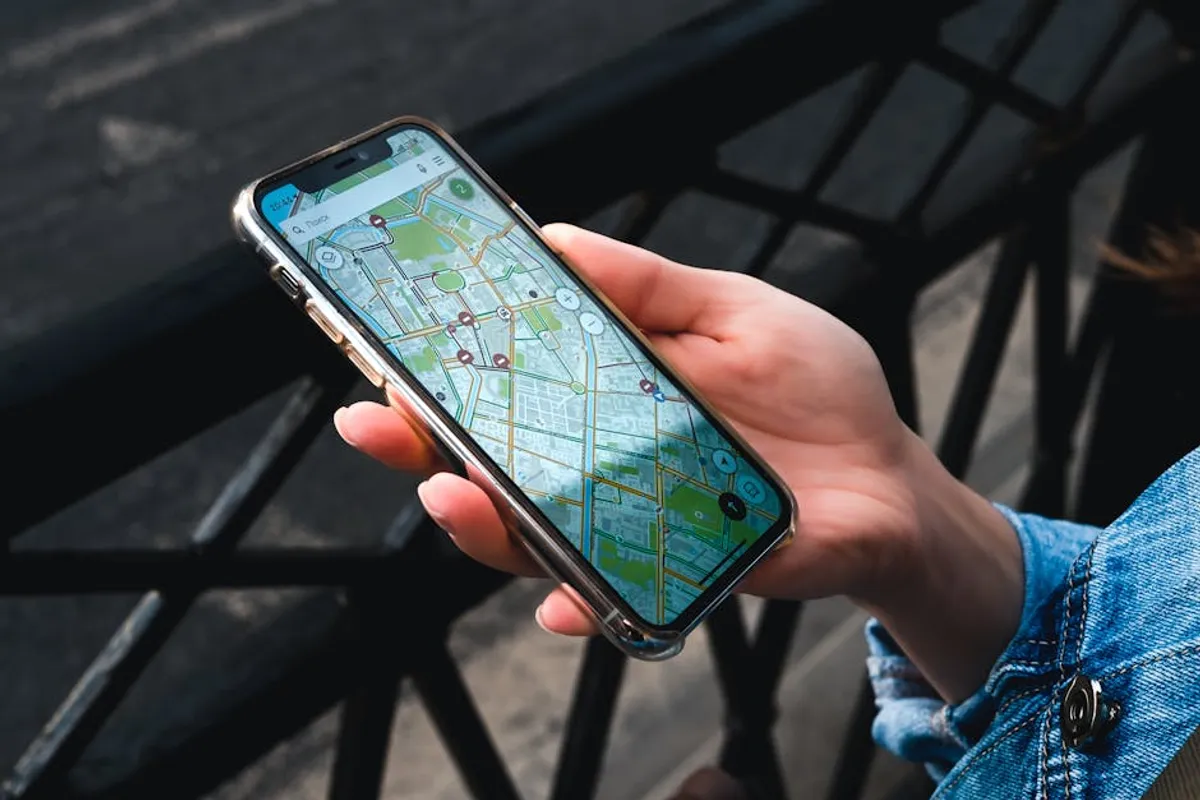
Recent updates to Google Maps have altered how users manage media playback during navigation, specifically the removal of integrated media controls for services like Spotify, Apple Music, and YouTube Music within the navigation interface. This change impacts millions who relied on seamless audio management without switching applications. For daily commuters, professional drivers, and businesses whose operations or customer journeys intersect with navigation, understanding this shift is crucial for maintaining efficiency and user satisfaction.
The Specific Change: Integrated Media Controls Discontinued
Google Maps previously offered direct access to media controls from popular streaming services within its navigation screen. This functionality allowed users to play, pause, skip tracks, and even browse playlists without exiting the Maps application. During active navigation, a small overlay or dedicated section would appear, providing immediate control over the audio stream. This integration aimed to reduce driver distraction by centralizing key functions.
The recent update, however, has removed these embedded controls. Users now find that the direct media management interface is absent when navigating. This means that to adjust music or podcasts, individuals must switch out of the Google Maps application and into their chosen media player or rely on other control methods. This shift affects the user flow, introducing an additional step and potentially disrupting the seamless experience many had grown accustomed to.
Impact on User Experience and Navigational Workflow
The primary consequence of this removal is an increased need for app switching. Where a quick tap on the Maps screen once sufficed, users must now navigate away from the primary navigation view to interact with their media. This has several implications:
- Increased Cognitive Load: Shifting focus between applications, even briefly, demands additional mental effort, which can be particularly impactful in dynamic driving environments.
- Potential for Distraction: Manually switching apps on a mobile device while driving introduces a greater risk of distraction compared to interacting with controls embedded within the primary navigation interface.
- Disruption to Established Habits: Many users had developed muscle memory for managing media directly within Maps. The absence of this feature requires a conscious adjustment to new interaction patterns.
- Car Infotainment System Reliance: For vehicles without advanced infotainment systems like Android Auto or Apple CarPlay, the impact is more pronounced, as the phone screen often serves as the central control hub for both navigation and media.
For businesses, understanding this shift in user behavior is important. If customers are navigating to a physical location, any friction in their journey, including managing media, can subtly affect their overall experience. Marketers and product developers should be aware that user attention during navigation might now be more divided, potentially impacting how other in-app prompts or notifications are perceived.
Pro Tip for Seamless Travel: To minimize disruption, configure your media playback before starting your drive. Utilize playlists or podcasts that require minimal interaction. For longer journeys, consider setting up your car's native media controls or voice commands to manage audio without needing to touch your phone screen or switch applications.
Adapting to the New Navigation Environment
While the integrated controls are gone, several effective alternatives exist for managing media during Google Maps navigation:
Leveraging Voice Commands
Modern smartphones and in-car systems offer robust voice command capabilities. Users can activate Google Assistant (on Android) or Siri (on iOS) to control media playback without physically touching their device. Commands like "Hey Google, play [song name] on Spotify" or "Hey Siri, skip track" allow for hands-free management, maintaining focus on the road and navigation.
Utilizing Car Infotainment Systems
Vehicles equipped with Android Auto or Apple CarPlay provide their own integrated media controls. When connected, these systems display media player interfaces directly on the car's screen, allowing users to manage audio through the car's physical controls or touchscreen, often in conjunction with Google Maps navigation running simultaneously. This offers a highly integrated and less distracting experience.
Bluetooth Device Controls
Many Bluetooth-enabled devices, such as car stereos, headphones, or dedicated media controllers, include physical buttons for play/pause, skip, and volume adjustment. These controls often work independently of the application currently in focus on the phone, allowing for media management without needing to switch out of Google Maps.
Pre-planning Playlists and Audio
A simple, yet effective, strategy is to start your desired music, podcast, or audiobook before initiating navigation. By setting up a continuous playlist or selecting a longer audio file, the need for frequent interaction with media controls is reduced, allowing Google Maps to remain the primary application on screen.
Understanding Google's Product Evolution
Google, like many large platform providers, frequently refines its applications based on user data, technological advancements, strategic priorities, and operational costs associated with maintaining third-party integrations. While specific reasons for the removal of these media controls have not been extensively detailed publicly, such changes often reflect a strategic decision to streamline core functionalities, improve performance, or reallocate development resources. For users and businesses, this underscores the dynamic nature of digital platforms and the ongoing need to adapt to evolving interfaces and feature sets. Focusing on core navigation and safety, while allowing other dedicated apps or platforms (like Android Auto/CarPlay) to handle media, might be part of this broader strategy.
Navigating Media Without In-App Controls
The removal of integrated media controls from Google Maps requires users to adjust their habits and leverage alternative methods for audio management during navigation. The key is to prioritize safety and minimize distraction. By actively using voice commands, relying on car infotainment systems, or utilizing external Bluetooth controls, users can maintain a fluid and focused navigation experience. Proactively setting up audio before a journey also significantly reduces the need for in-trip adjustments. For businesses, recognizing this shift in user interaction can inform how they communicate with customers who are navigating to their locations, ensuring a smooth overall journey.
Frequently Asked Questions
Why were the Google Maps media controls removed?
Google has not provided a detailed public explanation for the removal of integrated media controls. Such decisions typically stem from a combination of factors, including user feedback, strategic shifts in product development, streamlining of core features, or the evolution of broader ecosystem integrations like Android Auto and Apple CarPlay.
Can I get the integrated media controls back in Google Maps?
Currently, there is no official option or setting within Google Maps to re-enable the previously integrated media controls. The functionality has been removed from the application's interface.
What are the best alternatives for controlling music while navigating with Google Maps?
The most effective alternatives include using voice commands (Google Assistant, Siri), leveraging car infotainment systems like Android Auto or Apple CarPlay, or utilizing physical controls on Bluetooth devices (e.g., steering wheel buttons, headphones). Pre-planning your audio by starting playlists before your journey also minimizes the need for in-app interaction.
Does this change affect Android Auto or Apple CarPlay?
No, this change primarily affects the standalone Google Maps application on your phone. Android Auto and Apple CarPlay have their own dedicated interfaces and integrated media controls that function independently, allowing you to manage music and navigation simultaneously through your car's display.